No Upfront Fee to Remove Review Photos for Owners, Escalate to RepVive
Yes, but who can do it depends on who posted it. The original reviewer can delete any photo they uploaded in seconds through their Google account. Business...
Yes, but who can do it depends on who posted it. The original reviewer can delete any photo they uploaded in seconds through their Google account. Business owners cannot delete a customer’s photo directly. Instead, they have to report it to Google using Business Profile or Maps and wait for a policy review. If Google denies the request and the image is defamatory, obscene, or illegal, the next move is legal escalation, often through an attorney-led removal service.
TL;DR:
- Reviewers can delete their own photos instantly via Google Maps, while business owners must report images for policy review and wait for Google’s decision.
- Effective reports require matching the photo to a specific policy reason, such as privacy violation or illegal content, supported by clear evidence and precise descriptions.
- Google’s removal process is limited to photos showing private data, misattribution, explicit content, spam, or impersonation; normal customer feedback like messy rooms or bad hair isn’t policy violations.
- Repeated reports with the same evidence do not speed up removal, and legal escalation may be necessary if Google denies the request and the photo is unlawful or defamatory.
- Preparing thorough documentation and setting up profile alerts strengthen proactive management, but knowing when to escalate beyond standard reports is crucial to protect your listing.
Table of Contents
- How Do I Remove a Photo From a Google Review Right Now?
- What’s the Right Way to File a Photo Removal Report?
- Which Photos Actually Qualify for Removal?
- What If Google Won’t Take the Photo Down?
- How Do You Keep This From Happening Again?
- Why Most Owners Report the Wrong Photos First
- When Reporting Fails, RepVive Picks Up the Case
- Where to Go for Official Removal Steps
- Sources
- FAQ
How Do I Remove a Photo From a Google Review Right Now?
The path splits into two lanes: one for the person who posted the photo, one for the business it landed on.
If you’re the reviewer who uploaded the image, open Google Maps, tap your profile icon, and go to Your contributions. Under Photos or Reviews, find the image, tap the three dots, and choose Edit or Delete. Google’s Maps help documentation confirms the change usually reflects within minutes.
If you’re the business owner and the photo isn’t yours to delete, here’s the sequence:
- Open your Google Business Profile and go to the Photos tab.
- Find the photo in question and click the three-dot menu.
- Select Report a problem and choose the policy reason that matches the violation.
- Submit supporting evidence (screenshots, links, timestamps) in the description field.
- Wait. Google typically takes some time to review flagged content.
Before you submit anything, screenshot the photo, copy the review URL, and note the date it appeared. Don’t file the same report five times hoping volume speeds things up. It doesn’t.
Pro Tip: Take one clean screenshot that shows the photo, the reviewer’s name, and the date all in the same frame. It’s the single most useful piece of evidence you can hand to a moderator or an attorney later.
What’s the Right Way to File a Photo Removal Report?
Filing a report is easy. Filing one that actually gets approved is a different skill, and it comes down to matching your complaint to a specific policy reason rather than venting about how unfair the photo feels.
You can file from three places: Google Search (click the photo, then the flag icon), Google Maps (open the business listing’s photo grid, three-dot menu, report a problem), or directly inside your Business Profile dashboard. All three roads lead to the same review queue, so pick whichever interface you already have open.
The policy reason you select matters more than the wording around it:
- Privacy violation, the photo shows an identifiable private person, a license plate, or personal documents without consent.
- Not the right place, the image was clearly taken somewhere else and misattributed to your listing.
- Spam or advertising, the photo promotes a competing business or an unrelated product.
- Illegal or explicit content, nudity, violence, or anything that breaks Google’s content policies outright.
According to Google’s own Business Profile guidance, a request tied to a named policy category has a real shot; a generic complaint like “this photo is unfair” does not.
Write your description like you’re briefing a stranger who has never seen your business. State what’s in the photo, why it violates the specific category you selected, and attach a link. Skip the emotional appeal. Google’s moderators are working through a queue, not reading a grievance letter.
One more thing worth knowing: filing the same report multiple times doesn’t speed anything up. Google’s system tends to flag repeated submissions as spam-like behavior, which can actually slow down review of your original request instead of accelerating it.
Which Photos Actually Qualify for Removal?
Google’s removal policy is narrower than most owners expect, so knowing what’s realistically removable saves you time and frustration.
Five categories give you a legitimate shot:
- Privacy or personal data, a photo showing someone’s face in a private context, a home interior without consent, or an ID card. Evidence checklist: the photo itself, proof the subject didn’t consent, and a description of who’s identifiable.
- Not a photo of your business, an image of a different storefront, a competitor’s product, or an unrelated location tagged to your listing. Evidence: a comparison of your actual location versus what’s shown.
- Sexual, violent, or illegal content, explicit material has almost no gray area and tends to move fastest through review.
- Spam or advertising, a photo that’s clearly a flyer, logo, or promotional graphic for another company.
- Impersonation, someone posing as your business or staff in a misleading way.
What doesn’t qualify: an accurate photo of a messy table, a genuinely bad haircut, or a dish that looked exactly the way it looked. Google treats these as legitimate customer commentary, not policy violations, no matter how much they sting. Your better move there is a calm public reply and a push to get more recent, representative photos onto your profile.
What If Google Won’t Take the Photo Down?
A denied report isn’t the end of the road. It just means the standard process wasn’t built to handle your specific situation.
Start by locking down your evidence before you do anything else:
- Screenshot the photo, the reviewer’s profile, and the review text together.
- Save the direct URL and the date it was posted.
- Archive the page (a tool like the Wayback Machine works) in case the content changes or disappears before you act.
If the photo is paired with false statements or clearly identifies a private individual without consent, you may be looking at a defamation or privacy claim rather than a simple policy dispute. That’s a different lever entirely, and Google itself acknowledges that some content requires more than a standard user report to resolve.
This is where attorney-led services differ from another round of the same complaint form. They draft a legal claim tied to a specific harm, cite the exact statute or policy clause, and push it through direct escalation channels Google reserves for legitimate legal requests, not general user reports.
Pro Tip: Stop resubmitting the identical report. If your second attempt looks like your first, Google’s system reads it as noise, not urgency.
How Do You Keep This From Happening Again?
Removal is reactive. The smarter long game is catching problems before they sit live for weeks.
Set up alerts inside your Google Business Profile dashboard so you get notified the moment a new photo or review posts. A short delay between posting and noticing is often the difference between a quick fix and a photo that’s been up long enough to do real damage.
Have a short, calm reply template ready for photos that are misleading or out of context. You’re not arguing with the reviewer publicly. You’re giving future customers who read the thread a reason to trust your side while the report works through Google’s queue.
- Ask customers directly for permission before posting any photo that includes their face.
- Encourage recent, accurate photos through follow-up texts or receipts, following guidance on gathering reviews without breaking platform rules.
- Run a quick profile audit every quarter to catch stale or problematic images before a customer notices them first.
- If new negative photos keep appearing, a subscription monitoring tool may be worth the cost over manually checking your profile every week.
Why Most Owners Report the Wrong Photos First
Most owners flag every unflattering photo the moment they see it, and most of those reports go nowhere because an unflattering photo isn’t a policy violation. The ones worth your time are the ones carrying real legal or privacy exposure: an identifiable private individual, a defamatory caption, content that’s flatly illegal.
Build a quick rubric before you file anything. Ask: does this photo expose someone’s private information, misrepresent my business as something it isn’t, or break an explicit content rule? If yes, report it and document everything. If the honest answer is “it’s just bad news for me,” your better move is usually a public reply and a push for fresher photos, not a fourth appeal to Google’s moderation team.
The pattern of confusion around who can even delete these photos shows up constantly in owner forums, which tells me the process itself, not owner impatience, is the real bottleneck. Knowing when to stop reporting and start escalating is the skill that actually protects your listing.
, Jason
When Reporting Fails, RepVive Picks Up the Case
If you’ve filed the report, waited the standard turnaround, and the photo is still live, RepVive is built for exactly that gap. Instead of another generic complaint form, RepVive’s legal team drafts a customized claim tied to the specific policy or legal violation your case involves, then pushes it through escalation channels a standard user report never reaches.
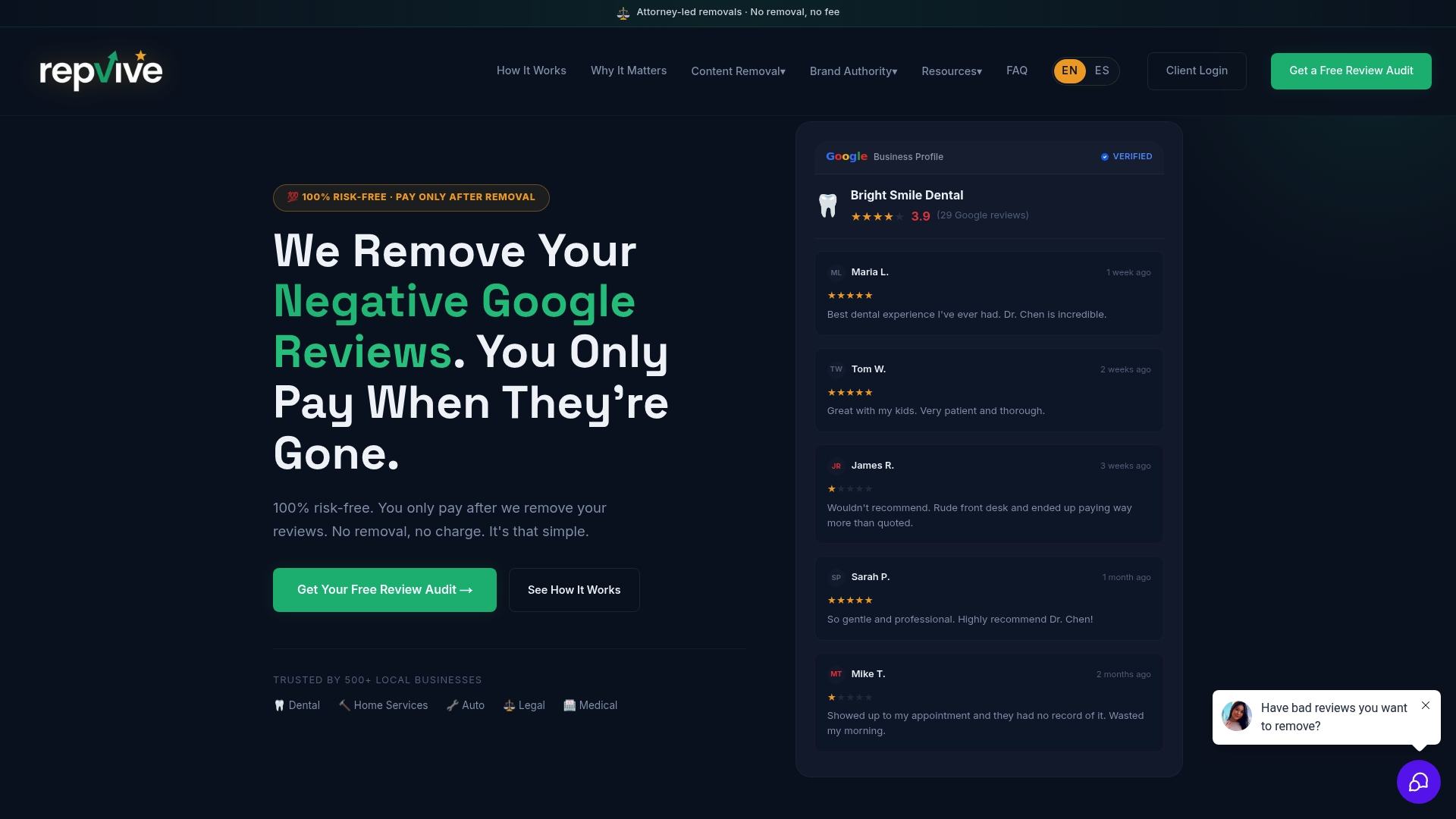
You pay nothing upfront, and nothing at all unless the removal actually goes through. That pay-per-removal structure, paired with monitoring tools like RepWatch and RepBoost, means you’re covered for both the current problem and the next one that shows up. Before you reach out, gather what you already have: screenshots, the review URL, and a timeline of when you first reported it to Google. That evidence is exactly what turns a stalled case into an approved removal. Start by requesting a case review on RepVive’s site and let the legal team tell you within days whether your photo qualifies.
Where to Go for Official Removal Steps
For direct, step-by-step instructions, Google’s own Business Profile photo reporting page and its Maps contribution editing guide are the two pages worth bookmarking. For a deeper look at when standard reporting isn’t enough, RepVive’s guide on hiring help for GMB removals walks through the decision point in more detail.
This article is general information, not a substitute for advice from a qualified lawyer. Consult a qualified legal professional about your own circumstances before acting on anything here.
FAQ
How do I remove unwanted images from Google?
If you posted the image, delete it through Your contributions in your Google account. If someone else posted it on your business listing, report it through Business Profile or Maps and select the matching policy reason.
How do I change photos on Google reviews?
You can’t edit a photo directly. You can only delete your own upload and replace it with a new one, or, as a business owner, report someone else’s photo for policy violations.
How do I remove a photo I posted on Google?
Open Google Maps, tap your profile, go to Your contributions, find the photo under Photos or Reviews, and select Delete. The change typically shows up within minutes.
How do I get my image removed from Google?
File a report through the correct channel (Business Profile, Maps, or Search) and choose a specific policy reason with supporting evidence. If Google denies it and the content is defamatory, an attorney-led service like RepVive can escalate the claim through direct channels.